



This guide explores the best Bluetooth microphones for gaming and streaming in 2025, covering desktop Bluetooth mics,...
Blog categories
Search in blog
Latest posts
-
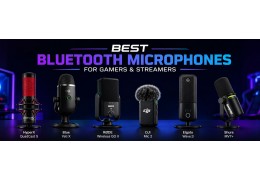 Best Bluetooth microphones for gamers and streamersRead more
 -
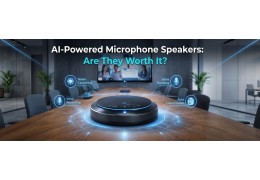 AI-Powered Microphone Speakers: Are They Worth Buying?Read more
This guide explains the value of AI-powered microphone speakers for modern communication needs. It highlights how AI...
-
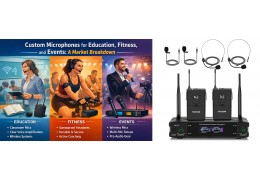 Custom Microphones for Education, Fitness, and Events: A Market BreakdownRead more
Custom microphones are transforming classrooms, gyms, and live events. From education microphone OEM solutions to...
-
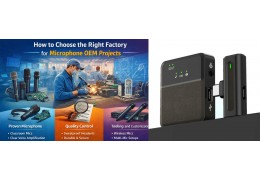 How to Choose the Right Factory for Microphone OEM ProjectsRead more
Choosing the right OEM microphone supplier is key to product success. This guide explains how to evaluate mic...
-
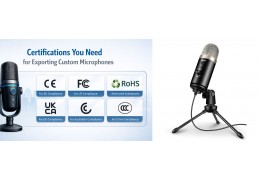 Certifications You Need for Exporting Custom MicrophonesRead more
Exporting custom microphones requires FCC, CE, and OEM certifications plus wireless audio compliance. This guide...
Popular posts
-
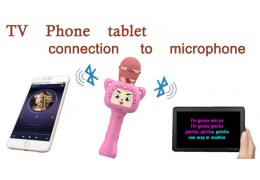 The way to connect the karaoke microphone via TV, mobile phone, tabletI hope you can learn about the various connection methods of the microphone while browsing this article, and it will...Read more
 -
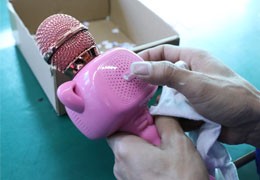 Toyard`s Kids microphone speaker Manufacturing processLet us take you to the production factory of wireless Bluetooth microphone speaker. Toyard`s kid microphone is...Read more
 -
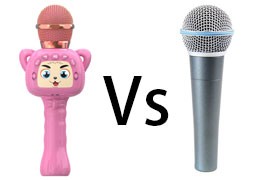 Wireless microphone Vs Bluetooth microphone SpeakerThis article is mainly to discuss the difference between a wireless microphone and a Bluetooth wireless microphone....Read more
 -
 The difference between a wired microphone and a wireless microphoneIn this article, you'll get a rundown of the various features of both the wired and the wireless microphones as well...Read more
 -
 Recommended children's karaoke microphone from July to December in the second half of 2021I will recommend to you which types of children's microphones that are more popular on the market during this period...Read more
Featured posts
- Best Bluetooth microphones for gamers and streamersThis guide explores the best Bluetooth microphones for gaming and streaming in 2025, covering desktop Bluetooth mics,...Read more
- AI-Powered Microphone Speakers: Are They Worth Buying?This guide explains the value of AI-powered microphone speakers for modern communication needs. It highlights how AI...Read more
- Custom Microphones for Education, Fitness, and Events: A Market BreakdownCustom microphones are transforming classrooms, gyms, and live events. From education microphone OEM solutions to...Read more
- How to Choose the Right Factory for Microphone OEM ProjectsChoosing the right OEM microphone supplier is key to product success. This guide explains how to evaluate mic...Read more
- Certifications You Need for Exporting Custom MicrophonesExporting custom microphones requires FCC, CE, and OEM certifications plus wireless audio compliance. This guide...Read more
Blog tags
karaoke speaker with microphone karaoke mic bluetooth headphones with mic karaoke speakers karaoke microphone best karaoke microphone wireless microphone for singing best wireless microphone wireless microphone headsets mic-k17 kids microphone karaoke machine for tv personalized microphones portable speaker with microphone wireless headphones with mic headset with mic wireless karaoke and microphone bluetooth karaoke machine karaoke machine custom microphone
-
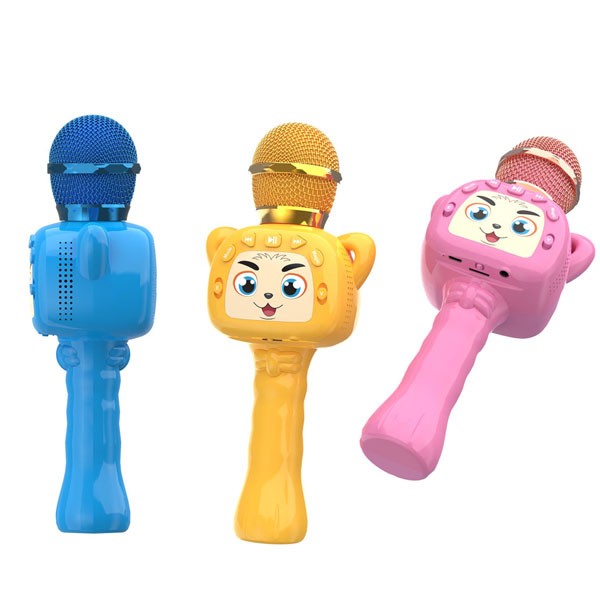
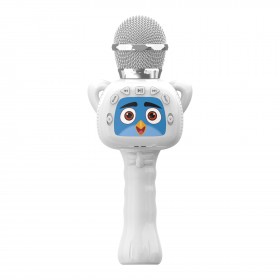
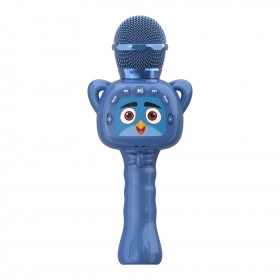
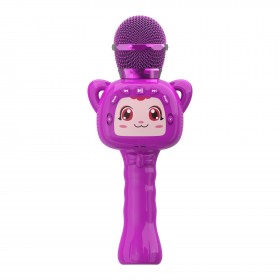
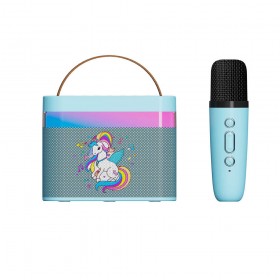
This kid microphone you three colors pink-blue-ye...

Top authors